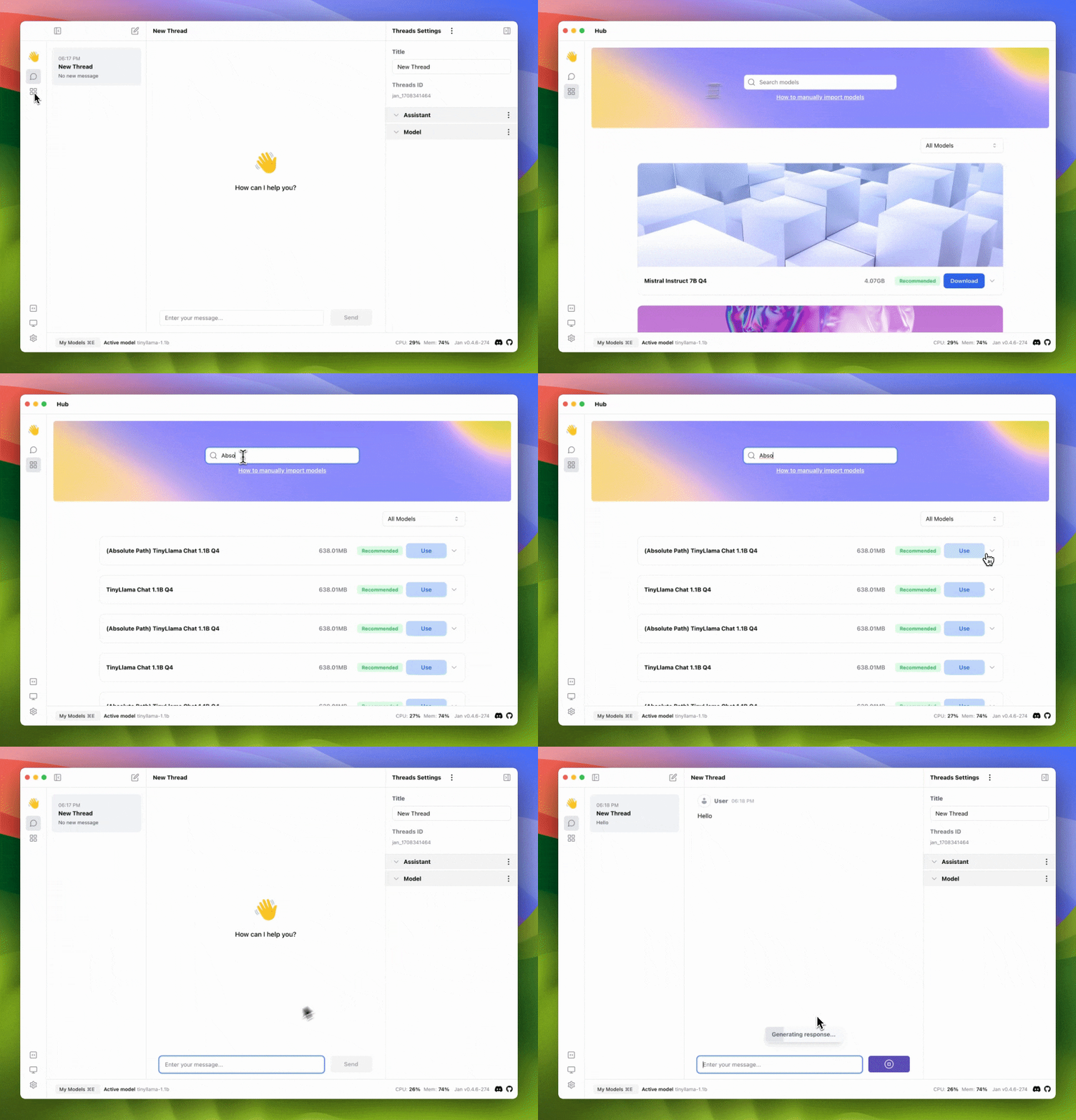
Import Models Using Absolute Filepath
In this guide, we will walk you through the process of importing a model using an absolute filepath in Jan, using our latest model, Trinity, as an example.
1. Get the Absolute Filepath of the Model
After downloading .gguf model, you can get the absolute filepath of the model file.
2. Configure the Model JSON
- Navigate to the
~/jan/modelsfolder. - Create a folder named
<modelname>, for example,tinyllama. - Create a
model.jsonfile inside the folder, including the following configurations:
- Ensure the
idproperty matches the folder name you created. - Ensure the
urlproperty is the direct binary download link ending in.gguf. Now, you can use the absolute filepath of the model file. - Ensure the
engineproperty is set tonitro.
{
  "sources": [
    {
      "filename": "tinyllama.gguf",
      "url": "<absolute-filepath-of-the-model-file>"
    }
  ],
  "id": "tinyllama-1.1b",
  "object": "model",
  "name": "(Absolute Path) TinyLlama Chat 1.1B Q4",
  "version": "1.0",
  "description": "TinyLlama is a tiny model with only 1.1B. It's a good model for less powerful computers.",
  "format": "gguf",
  "settings": {
    "ctx_len": 4096,
    "prompt_template": "<|system|>\n{system_message}<|user|>\n{prompt}<|assistant|>",
    "llama_model_path": "tinyllama-1.1b-chat-v1.0.Q4_K_M.gguf"
  },
  "parameters": {
    "temperature": 0.7,
    "top_p": 0.95,
    "stream": true,
    "max_tokens": 2048,
    "stop": [],
    "frequency_penalty": 0,
    "presence_penalty": 0
  },
  "metadata": {
    "author": "TinyLlama",
    "tags": ["Tiny", "Foundation Model"],
    "size": 669000000
  },
  "engine": "nitro"
}
warning
- If you are using Windows, you need to use double backslashes in the url property, for example:
C:\\Users\\username\\filename.gguf.
3. Start the Model
Restart Jan and navigate to the Hub. Locate your model and click the Use button.